Hi all,
we have an application here around the network in quite all the clients that stops working when we deploy Office2010 as a dll file got missing on the client itself.
The fastest solution is to copy the dll back and to register it again.
If you want to do it remotely, and I don't mean with remote desktop, you can do it like this:
Prerequisites:
- You are logged on your pc with a user with admin rights on the target machine
- you already downloaded PSTOOLS from here:
http://technet.microsoft.com/it-it/sysinternals/bb897553.aspx
and have psexec command ready to be run on the disk
(I've already remotely copied the dll file to the c:\windows\system32 on the target machine)
1. open the command prompt
2. change to the psexec directory
3. submit this command:
psexec \\pcname cmd
A command prompt appears on your pc, but it is executing on the target machine (named pcname) !
submit the command to register the dll, but silently because we don't want any message on the target (message that the user will not see anyway as we are executing in a different context):
regsvr32 /s mylibrary.dll
/s is for "silent"
mylibrary.dll is the .dll to be registered
type
exit
to close the remote command prompt and then exit again to close local prompt
that's all, the application is now working again :)
P.S: I used it logged on my pc with a user with admin rights on the target, but if you are not, you could try it with the switches:
-u user -p password
that should do the job (not tried)
bye
Digger

venerdì 29 luglio 2011

martedì 26 luglio 2011
SCCM 2007 - Fill collection from text file (import machine names)
Hi all,
today I was trying to fill a collection in SCCM2007 importing the machines name from a text file I produced manually using Excel due to some manual work on them (filtering, manual check and so on).
I first tried to import them using the "right-click-tool-menu" on the collection itself.
At first it seems the right way to do it but then I noticed this introduced some strange behaviour in the collection as when you want to edit the collection (right click, properties) you notice that some entries are EMPTY!
So you don't know what you are going to remove...
Very bad..
So I tried other ways, also powershell scripts.
But I was not very satisfied.
So at the end I found my way, ok, not the best one probably, but it does the job.
The way is to create a query in the collection where you put the machine list like this:
select SMS_R_SYSTEM.ResourceID,SMS_R_SYSTEM.ResourceType,SMS_R_SYSTEM.Name,SMS_R_SYSTEM.SMSUniqueIdentifier,SMS_R_SYSTEM.ResourceDomainORWorkgroup,SMS_R_SYSTEM.Client from SMS_R_System where SMS_R_System.Name in ( "PCNAME001" , "PCNAME002" , "PCNAME003" )
Ok, it works.
The problems now are two from my point of view.
1. it is a little bit boring to write the query manually putting all the machine names when I have it in excel and I could do a copy & paste
2. let's say in the future I need to modify the collection adding or removig some machine... not very easy to do
So I found my way also on this, 15 minutes and I wrote this small but useful application in VB.NET:

I write (paste) the machine list on the left, click the upper button and I obtain the query to paste in SCCM.
If I have to modify an existing collection, I copy and paste the query from SCCM to the right textbox and click the bottom button and on the leftI obtain the machine list, then I can edit it adding and removing, click the upper button again and I have the new query to pase in SCCM
For sure there are other tools/ways around, but for what I have to do, this is a good solution for me :)
bye
Digger
today I was trying to fill a collection in SCCM2007 importing the machines name from a text file I produced manually using Excel due to some manual work on them (filtering, manual check and so on).
I first tried to import them using the "right-click-tool-menu" on the collection itself.
At first it seems the right way to do it but then I noticed this introduced some strange behaviour in the collection as when you want to edit the collection (right click, properties) you notice that some entries are EMPTY!
So you don't know what you are going to remove...
Very bad..
So I tried other ways, also powershell scripts.
But I was not very satisfied.
So at the end I found my way, ok, not the best one probably, but it does the job.
The way is to create a query in the collection where you put the machine list like this:
select SMS_R_SYSTEM.ResourceID,SMS_R_SYSTEM.ResourceType,SMS_R_SYSTEM.Name,SMS_R_SYSTEM.SMSUniqueIdentifier,SMS_R_SYSTEM.ResourceDomainORWorkgroup,SMS_R_SYSTEM.Client from SMS_R_System where SMS_R_System.Name in ( "PCNAME001" , "PCNAME002" , "PCNAME003" )
Ok, it works.
The problems now are two from my point of view.
1. it is a little bit boring to write the query manually putting all the machine names when I have it in excel and I could do a copy & paste
2. let's say in the future I need to modify the collection adding or removig some machine... not very easy to do
So I found my way also on this, 15 minutes and I wrote this small but useful application in VB.NET:
I write (paste) the machine list on the left, click the upper button and I obtain the query to paste in SCCM.
If I have to modify an existing collection, I copy and paste the query from SCCM to the right textbox and click the bottom button and on the leftI obtain the machine list, then I can edit it adding and removing, click the upper button again and I have the new query to pase in SCCM
For sure there are other tools/ways around, but for what I have to do, this is a good solution for me :)
bye
Digger
venerdì 10 giugno 2011
Windows Update non funziona, errore 0x8DDD0018
Ciao,
oggi ho perso un sacco di tempo per risolvere questo problema, magari questo post potrebbe risparmiarne un po' a qualcun altro...
Seguendo i consigli di Microsoft ho controllato i servizi BITS, Aggiornamenti automatici, Registro eventi etc, ma purtroppo erano tutti correttamente avviati.
Nel log degli eventi e in quello degli updates non c'erano indicazioni su quale fosse il vero problema, allora alla fine l'unica cosa che mi ha salvato è stato di REINSTALLARE windows update.
Premetto che la procedura potrebbe chiedervi di inserire il cd con la service pack, quindi nel caso il vostro sistema operativo sia servicepakkato vi consiglio di assicurarvi che i files siano ancora sul pc, oppure in alternativa procuratevi la servicepack, oppure il cd con la service pack in modo da avere il tutto a disposizione durante lo step successivo.
Per reinstallare windows update fate cosi:
1. aprite il prompt (esegui, CMD, invio)
2. digitate questo comando e date invio:
%windir%\System32\rundll32.exe setupapi,InstallHinfSection DefaultInstall 132 %windir%\inf\au.inf
3. a questo punto potrebbe chiedervi i famosi files della service pack, fatelo puntare a dove li avete salvati
4. riavviate il pc
5. aprite IE e provate ad andare sul sito di windows update
Se tutto va bene dovrebbe funzionare
ciao
oggi ho perso un sacco di tempo per risolvere questo problema, magari questo post potrebbe risparmiarne un po' a qualcun altro...
Seguendo i consigli di Microsoft ho controllato i servizi BITS, Aggiornamenti automatici, Registro eventi etc, ma purtroppo erano tutti correttamente avviati.
Nel log degli eventi e in quello degli updates non c'erano indicazioni su quale fosse il vero problema, allora alla fine l'unica cosa che mi ha salvato è stato di REINSTALLARE windows update.
Premetto che la procedura potrebbe chiedervi di inserire il cd con la service pack, quindi nel caso il vostro sistema operativo sia servicepakkato vi consiglio di assicurarvi che i files siano ancora sul pc, oppure in alternativa procuratevi la servicepack, oppure il cd con la service pack in modo da avere il tutto a disposizione durante lo step successivo.
Per reinstallare windows update fate cosi:
1. aprite il prompt (esegui, CMD, invio)
2. digitate questo comando e date invio:
%windir%\System32\rundll32.exe setupapi,InstallHinfSection DefaultInstall 132 %windir%\inf\au.inf
3. a questo punto potrebbe chiedervi i famosi files della service pack, fatelo puntare a dove li avete salvati
4. riavviate il pc
5. aprite IE e provate ad andare sul sito di windows update
Se tutto va bene dovrebbe funzionare
ciao
venerdì 27 maggio 2011
Systeminfo e findstr : Ricerca informazioni
Ho trovato questo comando molto interessante per recuperare alcune informazioni utili sul sistema locale in uso:
systeminfo
se volessimo filtrare per qualche informazione in particolare, ad esempio un aggiornamento microsoft:
systeminfo | findstr "KB2079403"
se poi vogliamo recuperare questa informazione da una macchina remota sulla rete:
systeminfo /s \\nomemacchina | findstr "KB2079403"
Il comando "findstr" può tornare utile da solo anche per altri tipi di ricerca, ad esempio per cercare TUTTI i files *.txt (partendo da C:\ e includendo tutte le sottocartelle) che contengono la parola "test" possiamo digitare:
findstr /S test c:\*.txt
potete divertirvi a sperimentare tutte le numerose opzioni :)
ATTENZIONE
di default la ricerca è CASE-SENSITIVE quindi bisogna stare attenti alle maiuscole/minuscole, se si vuole fare una ricerca indipendentemente dal case aggiungere lo switch /i cosi:
findstr /I /S test c:\*.txt
(thanks to SerJ)
di default la ricerca è CASE-SENSITIVE quindi bisogna stare attenti alle maiuscole/minuscole, se si vuole fare una ricerca indipendentemente dal case aggiungere lo switch /i cosi:
findstr /I /S test c:\*.txt
(thanks to SerJ)
giovedì 21 aprile 2011
Windows: copia di file attraverso la rete , riduzione dell'uso della banda
Ciao,
vi è mai capitato di dover copiare una gran quantità di dati attraverso la rete?
A volte lo possiamo fare utilizzando tutta la banda a disposizione, ma altre volte purtroppo la cosa non è fattibile, pensiamo a quando stiamo copiando dati attraverso una WAN dove oltre a noi passano i dati di tutti gli altri utenti e su cui sono basati numerosi servizi.
Se copiassimo al massimo della velocità ammazzeremmo la banda e probabilmente avremmo tutta una serie di disservizi e utenti arrabbiati che si lamenterebbero.
Soluzione:
un modo per copiare files potendo limitare l'uso della banda è ROBOCOPY
tra i parametri di questa utility infatti esiste /IPG:ms che ci permette di specificare quanto tempo deve intercorrere (in ms) tra l'invio di un pacchetto e quello successivo.
Quindi non ci permette direttamente di specificare quanta banda usare, ma andando un po' a tentativi e magari usando un tool che ci visualizza l'uso della banda da parte del nostro pc, arriveremo presto a settare il valore in ms ideale per la nostra copia.
Ecco un esempio:
robocopy "\\fileserver001\share\dati" "c:\backup\" *.pst /IPG:10
il risultato potrebbe essere questo ( notate i 3,2mB/s ) :

diciamo che 3.2mB/s non ci va bene e vogliamo occupare MENO banda? proviamo a mettere 20:
robocopy "\\fileserver001\share\dati" "c:\backup\" *.pst /IPG:20

visto ? l'occupazione è passata da 3.2 a 1.6mB/s
A chi interessasse, il tool usato per monitorare la banda nell'esempio è FreeMeter
ciao
alla prossima
vi è mai capitato di dover copiare una gran quantità di dati attraverso la rete?
A volte lo possiamo fare utilizzando tutta la banda a disposizione, ma altre volte purtroppo la cosa non è fattibile, pensiamo a quando stiamo copiando dati attraverso una WAN dove oltre a noi passano i dati di tutti gli altri utenti e su cui sono basati numerosi servizi.
Se copiassimo al massimo della velocità ammazzeremmo la banda e probabilmente avremmo tutta una serie di disservizi e utenti arrabbiati che si lamenterebbero.
Soluzione:
un modo per copiare files potendo limitare l'uso della banda è ROBOCOPY
tra i parametri di questa utility infatti esiste /IPG:ms che ci permette di specificare quanto tempo deve intercorrere (in ms) tra l'invio di un pacchetto e quello successivo.
Quindi non ci permette direttamente di specificare quanta banda usare, ma andando un po' a tentativi e magari usando un tool che ci visualizza l'uso della banda da parte del nostro pc, arriveremo presto a settare il valore in ms ideale per la nostra copia.
Ecco un esempio:
robocopy "\\fileserver001\share\dati" "c:\backup\" *.pst /IPG:10
il risultato potrebbe essere questo ( notate i 3,2mB/s ) :
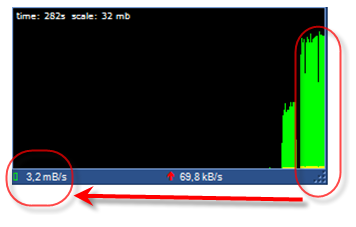
diciamo che 3.2mB/s non ci va bene e vogliamo occupare MENO banda? proviamo a mettere 20:
robocopy "\\fileserver001\share\dati" "c:\backup\" *.pst /IPG:20
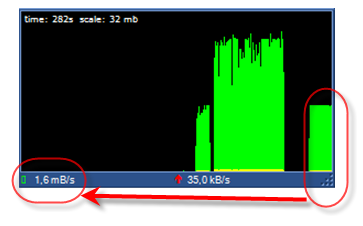
visto ? l'occupazione è passata da 3.2 a 1.6mB/s
A chi interessasse, il tool usato per monitorare la banda nell'esempio è FreeMeter
ciao
alla prossima
mercoledì 30 marzo 2011
Aprire files CHM
Ciao,
per aprire le guide in formato .chm sul vostro Ubuntu potete usare xCHM, procedete cosi:
sudo apt-get install xchm
(nel caso ci sia bisogno, preceduto da un sudo apt-get update )
ciao
per aprire le guide in formato .chm sul vostro Ubuntu potete usare xCHM, procedete cosi:
sudo apt-get install xchm
(nel caso ci sia bisogno, preceduto da un sudo apt-get update )
ciao
Aprire files .RAR su ubuntu
Ciao,
per integrare la possibilità di aprire i files .RAR su Ubuntu procedere cosi:
sudo apt-get update
sudo apt-get install unrar
dopo di che cliccando su un file .RAR sarete in grado di aprirlo
ciao
per integrare la possibilità di aprire i files .RAR su Ubuntu procedere cosi:
sudo apt-get update
sudo apt-get install unrar
dopo di che cliccando su un file .RAR sarete in grado di aprirlo
ciao
Iscriviti a:
Post (Atom)